Fieldnotes

A one-time-pay Granola alternative for Mac

Your agents already do this.
Why pay monthly for theirs?

A field journal for the AI you already pay for. Fieldnotes records and transcribes your meetings on-device, then hands the markdown to Claude, Codex, Cursor, or ChatGPT — whichever agent already lives on your Mac.

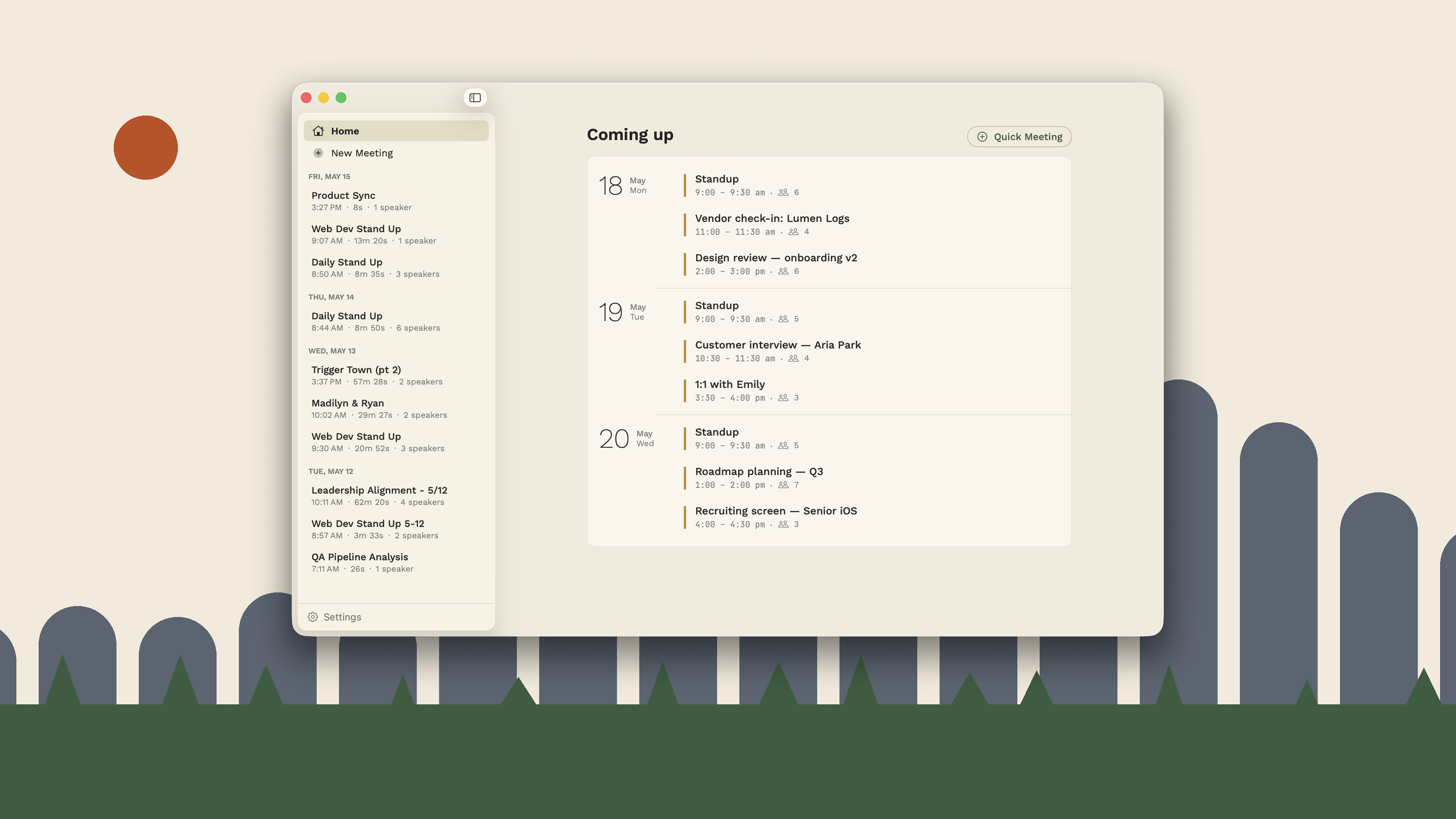
The Fieldnotes app showing a sidebar of past meetings and a Coming up agenda for the next three days.

One-time purchase. No subscriptions. No cloud. macOS 14+, Apple Silicon.

The math doesn't math.

You're already paying Anthropic, OpenAI, Google, or some combination — likely $20 to $200 a month — for an AI agent that can summarize, recap, search, and draft on demand.

Why pay another $168 a year for a meeting-notes service that bolts a worse AI on top of your audio, hosts it in their cloud, and locks you out the day you cancel?

Granola Business

$14/user/mo
  • $168/year, every year
  • Audio uploaded to their cloud
  • Notes locked in their account
  • Their AI processes your meetings
  • Their summaries, their format

Fieldnotes

$14.99once
  • One-time. Yours forever.
  • Audio stays on your Mac
  • Notes are plain markdown files you own
  • The AI you already pay for processes your meetings
  • Your prompts, your format

5-year cost: $840 vs. $14.99. The savings buy a lot of Claude Max tokens.

How Fieldnotes is different from Granola.

Granola is great if you live on Zoom and don't mind their subscription or their cloud. Three things change once you walk into a conference room:

In-person speaker identification
Granola (Mac)

Labels every voice as either “Me” or “Them” based on whether the audio came from your mic or your speakers. That isn't speaker identification — it's audio-source tagging. Their iPhone app does face-to-face diarization; the Mac app doesn't.

Source: Granola docs — "only our iPhone app can recognize different speakers"

Fieldnotes

Runs real speaker diarization locally on your Mac's Neural Engine for every recording. A four-person conference room becomes four distinct speakers, with a post-recording wizard that lets you name each one. Names you've used before pop up as one-tap chips on the next meeting.

Where your audio lives
Granola

Audio and transcripts are uploaded and processed in their cloud. The notes are tied to a Granola account. If you cancel, you lose access to your own meeting history.

Fieldnotes

Audio stays at ~/Library/Application Support/Fieldnotes/ on your Mac. Transcripts are plain markdown, written to whichever export folder you pick (default ~/Documents/Fieldnotes/ — point it at an Obsidian vault, a sync folder, anywhere). No account, no server, nothing to cancel.

Which AI processes your meetings
Granola

Their AI, their prompts, their formats. You can adjust templates, but the summarization happens server-side under their account. You can't point it at your own Claude Max session.

Fieldnotes

The AI you already pay for. Drop the markdown into Claude Code, Cursor, ChatGPT — or use the bundled process-fieldnotes Claude skill. Same prompts you'd write for anything else; same agent context.

Granola wins for teams that want polished out-of-the-box summaries and shared workspaces. Fieldnotes wins for individuals who already pay for a serious AI subscription, take a lot of in-person meetings, and want to keep their data on their own disk.

How it works

1

Record

Click record. Fieldnotes captures your mic + system audio simultaneously, so in-person, Zoom, Meet, and Slack Huddles all work. Nothing leaves your Mac.

2

Transcribe & diarize

Best-in-class transcription and speaker diarization run on your Mac's Neural Engine — no audio leaves the device. You get speaker-attributed, timestamped markdown plus a wizard to tag each cluster by name.

3

Hand it to your AI

Markdown gets written to whatever folder you pick — an Obsidian vault, an iCloud-synced folder, anywhere. Default is ~/Documents/Fieldnotes/. Drop the folder into Claude Code, Cursor, ChatGPT, or use the included process-fieldnotes Claude skill for instant summaries and follow-ups.

Use it with the AI you already have.

Fieldnotes outputs clean, speaker-attributed markdown. Every modern AI agent can read it. We ship a real Claude Code skill that turns your meeting corpus into a queryable knowledge base.

Featured

Claude Code

Drop in our process-fieldnotes skill. Four commands out of the box:

  • /process-fieldnotes — summarize new meetings with decisions, action items, and open questions
  • /fieldnotes-recap <scope> — synthesize across a day, week, topic, or person
  • /draft-followup <meeting> — generate a follow-up email in your voice
  • /fieldnotes-search <query> — search across all your meetings with speaker + timestamp context
curl -O https://fieldnotes.fm/skill/SKILL.md
mkdir -p ~/.claude/skills/process-fieldnotes
mv SKILL.md ~/.claude/skills/process-fieldnotes/
Download SKILL.md

ChatGPT

Build a Custom GPT that reads from a folder synced via iCloud Drive or Google Drive. Paste the prompt below as system instructions.

Sample system prompt
You read meeting transcripts in markdown format from a synced folder.
Each file has a metadata header (Date, Duration, Participants) followed
by a speaker-attributed transcript. When asked to summarize, extract
explicit decisions, action items (with owners), and open questions —
don't paraphrase, quote the moment of decision.

Cursor

Add ~/Documents/Fieldnotes/ to your workspace. Cursor's native agent indexes the markdown automatically. Use the chat panel to query: "What did we decide about pricing across this week's meetings?"

Codex CLI / Gemini CLI

Both can read directories with a single command. Point them at the export folder and ask. The Claude skill's prompt template translates directly — copy it from the SKILL.md.

GitHub Copilot

Add the export folder to a VS Code / JetBrains workspace. Copilot Chat picks up the markdown context for inline Q&A.

Any other LLM

The output is plain text. Paste it. The whole point is that you don't need a special integration — the markdown speaks every agent's language.

What's in the box

On-device, always

Audio, transcription, and diarization all run locally on Apple Silicon. Zero network calls during a recording.

Mic + system audio

Captures both sides of a call simultaneously. Remote and in-person voices land in the same transcript.

Real diarization

Real on-device speaker separation, not silence-gap heuristics. Plus a post-stop wizard to tag each cluster by name.

Speaker memory

Names you've used before pop up as one-tap chips on the next recording. Recurring meeting members stop costing you typing.

Calendar-aware

Reads upcoming events from macOS Calendar (iCloud, Google, Exchange). Click a meeting to start a recording with speaker count pre-set.

Clean markdown out

Speaker-attributed, timestamped, with a metadata header. Drop into Obsidian, Notion, your AI of choice — or just cat the file.

Auto-recovery

When AirPods reconnect mid-meeting or the OS reroutes audio, Fieldnotes rebuilds the engine and keeps writing to the same file.

Native Swift

No Electron. No Chromium. ~50 MB on disk before the AI models. The models add ~2 GB once, then live on your filesystem.

The honest list of what we don't do.

Most landing pages hide their limits. Here are ours, up front:

Pay once. Own it.
$14.99
One-time purchase. No subscriptions.
Buy for $14.99

Distributed via Gumroad. Code-signed and notarized by Apple. The app is yours to keep even if Fieldnotes the company ceases to exist tomorrow — nothing depends on our servers.

Honest answers to the questions you'd ask before clicking Buy.

Where do my recordings and notes go?

Both stay on your Mac. Audio files (.m4a) live at ~/Library/Application Support/Fieldnotes/audio/. Markdown transcripts get written to an export folder you choose in settings — the default is ~/Documents/Fieldnotes/, but you can point it anywhere (a sync folder, an Obsidian vault, wherever). Nothing is ever uploaded. There is no Fieldnotes account. There is no Fieldnotes server.

How is the transcription done?

Best-in-class on-device models for speech-to-text and speaker diarization, both running on Apple's Neural Engine. They download once on first launch (~2 GB total) and live entirely on your filesystem — no network calls during a recording.

Do I need a Claude subscription?

No, not to use Fieldnotes — capture, transcription, and diarization all work offline. You need an AI subscription (Claude, ChatGPT, Cursor, anything) to process the notes afterward into summaries and followups. The value of Fieldnotes scales with the quality of the agent reading the output.

What about Intel Macs?

Sorry — won't work. The on-device transcription model needs Apple Silicon to run at usable speed. The app refuses to launch on Intel hardware so you don't waste a purchase.

Does it work in person? On Zoom? On Google Meet?

All three. In-person uses mic only. Zoom / Meet / Slack Huddles / Webex use mic + system audio — we mix both streams before transcription so remote voices land in the transcript too.

What about my privacy / NDAs / sensitive meetings?

Audio never leaves your Mac. Transcripts are plain markdown files you own. There is no "Fieldnotes account" to subpoena. If you're recording other people, get their consent — that's your legal responsibility, not ours.

Can I export to Notion / Obsidian / Apple Notes?

The export is plain markdown. Drop the folder into Obsidian and you're done. Notion: paste or use a sync tool. Apple Notes: drag-import.

What happens if you stop developing it?

You keep using the version you bought. The model files live on your disk; we don't gate them behind a server. The app would still work in 5 years on a Mac that can still run macOS 14+.

Is there a trial?

Not yet. For now, the $14.99 is the trial — if you don't like it after a week, refund flow is one email.